Two screens need one wide file, not two copies of a narrow one
SECTION
SCREEN SIZEANSWERS
dual monitor wallpaperREAD
5 minFIGURE
photographA dual monitor wallpaper is one image as wide as both screens put together, so two 1920 x 1080 panels side by side need a single file at 3840 x 1080 rather than two copies of a 1920 x 1080 picture.
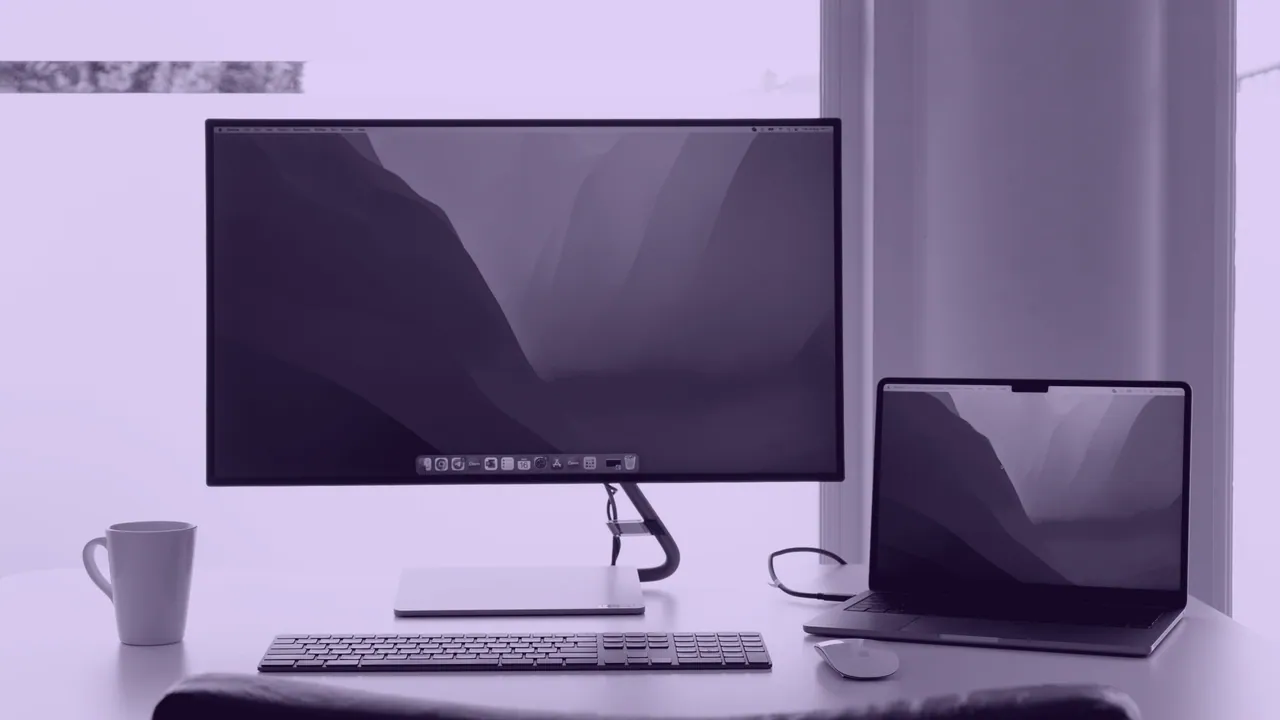
Two copies is the mistake almost everybody makes first, and it is visible instantly: the same face appears twice, the same horizon restarts at the bezel, and the desk stops looking like one workspace. One wide file solves it, and the only arithmetic involved is addition.
Adding the widths gives you the number
Add the widths of the two panels and keep the height of the taller one, and that pair is the size of the file you need. The rule does not change with the number of screens or the make of the monitor, because the desktop treats every attached display as one continuous canvas and the wallpaper covers the whole canvas.
| Left panel | Right panel | One file at | Note |
|---|---|---|---|
| 1920 x 1080 | 1920 x 1080 | 3840 x 1080 | the commonest dual desktop in the world |
| 2560 x 1440 | 2560 x 1440 | 5120 x 1440 | the same file size a 49 inch super ultrawide wants |
| 3840 x 2160 | 3840 x 2160 | 7680 x 2160 | two 4K panels, since 4K is 3840 x 2160 |
| 2560 x 1440 | 1920 x 1080 | 4480 x 1440 | mixed heights, so the shorter panel shows a crop |
Notice the second row. A pair of QHD monitors and a single 49 inch panel at 5120 x 1440 want an identically sized file, which means art made for one works on the other, minus the bezel running down the middle of the first.
How to set one spanned image on Windows 11
To set one spanned image on Windows 11, put the wide file somewhere permanent first, then change the fit before you change the picture.
- Right click the desktop and choose Personalize, or open Settings and go to Personalization, then Background.
- Set Personalize your background to Picture.
- Choose Span under Choose a fit for your desktop image.
- Browse to the wide file and select it, and it will lay itself across both displays as one picture.
Span is the only fit that treats the displays as one canvas. Fill, Fit, Stretch, Tile and Center all act on each display separately, which is why choosing the file first and the fit afterward makes it look as though the spanned wallpaper is broken. If you want two different images instead, pick Fill, then right click a picture in the recent images row and assign it to monitor one or monitor two.
Why macOS sets wallpaper per display and does not span
macOS sets wallpaper per display and does not span a single picture across two of them, so there is no equivalent of the Span option in the Mac wallpaper settings. Each display gets its own picture and its own fit, and macOS scales each one to fill, cropping whichever axis is proportionally longer, unless you pick Fit To Screen or Stretch for that display.
The workaround on a Mac is to do the spanning yourself before the file reaches the system: cut the wide image into two files at the exact native size of each panel, then set each half on its own display. Cutting a 3840 x 1080 image into two 1920 x 1080 halves gives a seam that lines up, provided both panels really are 1920 x 1080 and not a Retina panel reporting points. A Retina display holds two pixels per point in each direction, so a 4K file on a 5120 x 2880 iMac is still an upscale, and a half cut to the reported number arrives at half resolution.
Two monitors that are not the same resolution
Two monitors that are not the same resolution cannot both receive a perfect crop from one file, and that is a property of the geometry rather than a fault in the wallpaper. Windows still spans across the full bounding box, so the file must be as wide as the sum of the widths and as tall as the taller panel; the shorter display then shows the portion of the image that falls inside its own smaller rectangle. Mixed physical sizes make it worse again, because a 27 inch and a 24 inch monitor at the same resolution place the seam at different physical heights.
Two approaches survive this. Compose for the taller panel and accept that the shorter one sees a band from the middle, or give up on spanning entirely and set a separate, correctly sized image on each display.
What survives being cut in half by a bezel
Art that survives a dual monitor setup keeps its subject away from the middle, because the bezel sits exactly there and a face split down the nose is unrecoverable. Wide landscape compositions with a low horizon work. Images built around a single centered figure, which is how most anime key art is composed, are the worst possible case: the character lands on the join. Look for pieces where the interest sits in the left third and the right third with open sky, water or negative space between them, and check where the seam will land before you commit.
Format matters more at these widths than at ordinary ones, because the pixel count is large. PNG is lossless and never bands, which suits flat cel color and line art, at the cost of a heavy file. WebP is roughly 25 to 35% smaller than JPEG at similar quality. AVIF is smaller again and supports 10-bit color, which largely removes the banding that a wide flat sky invites. A moving wallpaper across two screens needs an application rather than the desktop, and the usual one on Windows is Wallpaper Engine, which is sold on Steam, is paid rather than free, and is Windows only.
The width is only half the question
Getting the width right settles whether the image will cover both panels; it settles nothing about whether the image is yours to use. Free to download and free to use are not the same thing, and a wide anime file offered without a stated license is simply a file with no stated license. Finding the picture is the easy part. The two tests that follow are the pixel count and the rights.
THE ARITHMETIC
Widths add, heights do not. Two 1920 x 1080 panels want 3840 x 1080, two 2560 x 1440 panels want 5120 x 1440, and Span is the setting that uses it.